
Attach the menu
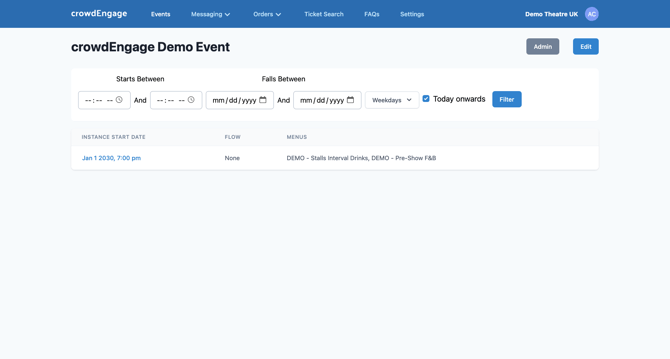
- Go to the Events page, click the event, and its performances appear. Click Edit.
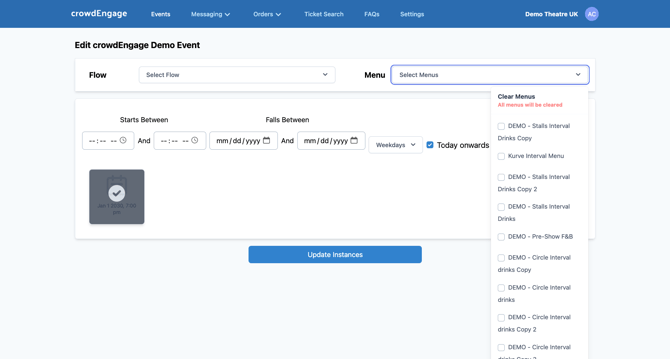
- Tick every performance you want the menu on. Use the date/time filter to move quickly on a long run.
- In the dropdown, select all the menus you want, then click Update Instances.
Menus can be attached at any time and update on the customer's mobile ticket instantly, as long as the menu is scheduled to be open. Once a menu is attached and the customer has had their message, an Order tab appears on their mobile ticket.
What the customer sees
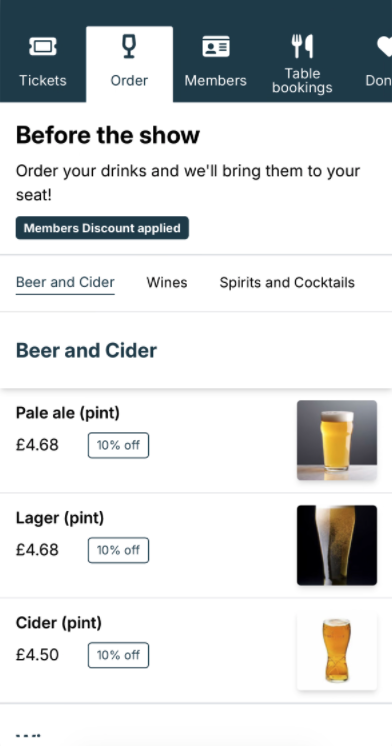
They open the Order tab, pick items, and pay by card through your chosen payment processor straight from their ticket. They get a confirmation page and a confirmation text.
If you'd use the same menus on every performance and don't want to attach them each time, they can be set as default menus so they're added automatically. Contact support and we'll set it up . This only works if you don't regularly change your menus.
If it's not working- No Order tab on the ticket. The menu isn't attached to that performance, or it isn't scheduled to be open yet (check its open/close times)
- Menu attached but empty. Its sections/products aren't set — see Add sections & products to a menu.
- Went to the wrong performances. Ticks are per-performance — filter and confirm the count before updating.
Help: support@encorepro.com