
Watch orders come in
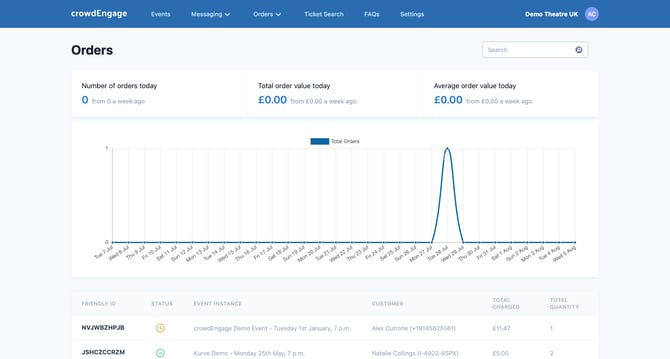
Orders appear in a list on the dashboard as they're placed. Every order shows here whether or not it's been sent to the till yet, so you always know your count.
- Orange clock = the order hasn't been sent to your till yet.
- Green = it's been sent.
- Integrated till — orders push to the POS at the time you set, print off, and get made up for collection.
- Manual — crowdEngage can email you when the menu closes, so the same make-up process runs without an integrated till.
For a live picture of a performance, click into the performance for a breakdown of each item ordered, per menu. Download it as a CSV. This is useful for prepping stock during the day or reconciling at close.
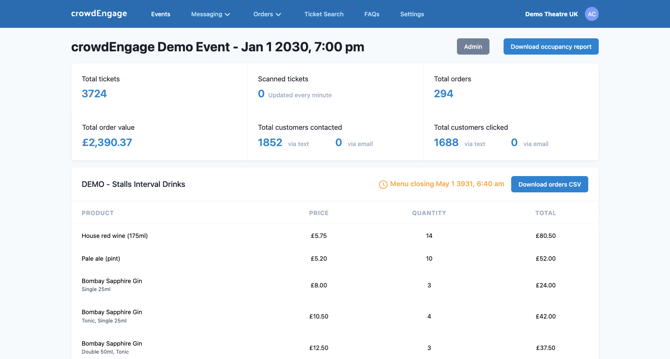
Need more than the per-performance view? Support can generate reports for you. Get in touch if there's any other preorder reports you want to see.
If it's not working- Order stuck on the orange clock. Its send time hasn't triggered yet — check the menu's order-send setting (batched vs one by one) and the performance timing.
- Order in crowdEngage but not on the till. Confirm the menu is synced to the POS; a manual menu never pushes to the till by design.
- Refund won't process. Refunds run in Stripe — open the order and use the Stripe button; check the payment in your Stripe dashboard.
Help: support@encorepro.com